
Desktop app overview
How the Overshow desktop app is organised. routes, navigation, tray, and Quick Ask.
Last updated: 12 July 2026
What you see when you open Overshow
The desktop app is a native application. When you launch it, Ask opens by default. That is your home view for grounded answers, citations, and quick jumps into the source history behind them.
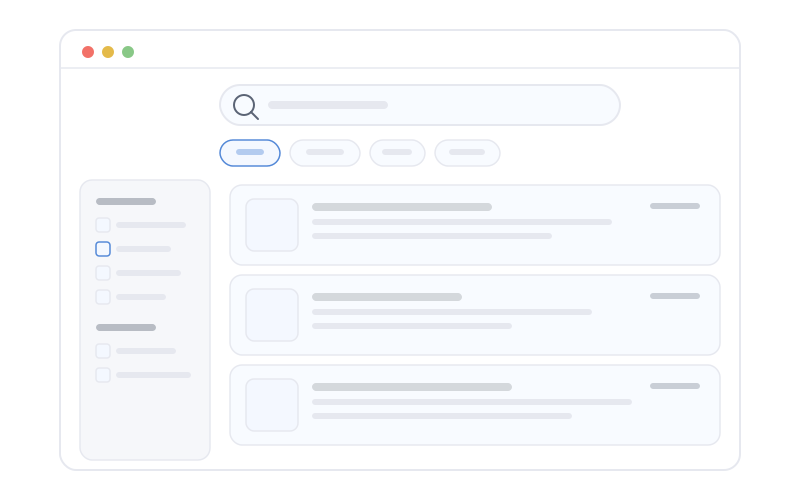
Main areas
The navigation rail covers the core surfaces:
- Ask (
/search): default view for finding captures and asking questions. - Timeline (
/timeline): chronological surface of what was captured when. - People (
/profiles): people, organisations, and projects. - Sources (
/sources): citation and source verifier, with a separate interactions view when UI interaction capture is enabled. - Settings (
/settings): account, capture, and system settings.
When meeting features are turned on, Meetings and Actions also appear in the rail, and a Feedback entry lets you send in-app feedback. A few other areas, such as the daily Summary view, are reached by deep link and follow their related settings.
Each area is self-contained but linked: for example, Ask and Quick Ask can send you to Sources with the right citation selected.
System tray and dock
On macOS, Overshow appears in the menu bar (system tray). You can pause or resume capture from there. Pause and error states are shown inside the app.
Tray behaviour is described in more detail in Tray and dock.
Quick Ask overlay
Quick Ask is a lightweight overlay you open with a keyboard shortcut (default Option+Space). You type a question, get an answer grounded in your captures, and dismiss without leaving the app you were using. See Quick Ask.
Why Ask is the default
Most day-to-day work is recall: finding a decision, a phrase, or a moment. Putting Ask first keeps the answer path and its source verification one click or shortcut away from launch.