
Tray and dock
Menu bar tray actions and the matching macOS application menu in Overshow.
Last updated: 26 July 2026
System tray (menu bar)
Overshow lives in the macOS menu bar. Left-click or right-click the tray icon to open its menu.
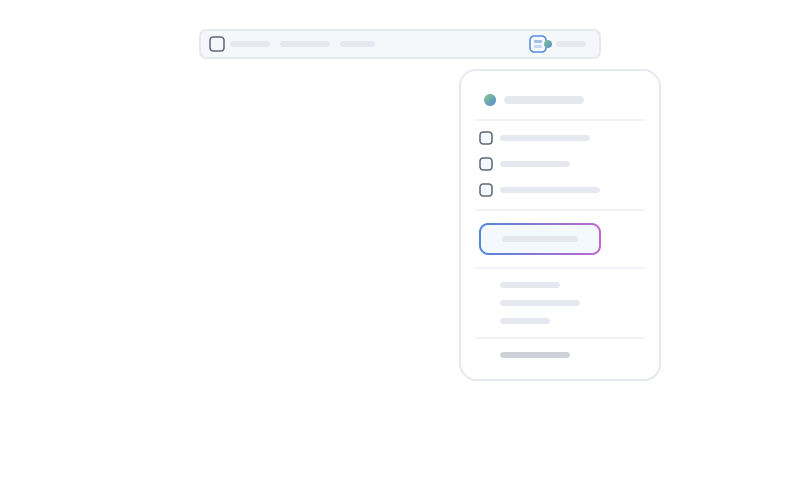
- See the current meeting state.
- Show the live meeting panel.
- Open the call when a call link is available.
- Start, pause, resume, or retry transcription as appropriate.
- Stop and summarise the active meeting.
- Pause or resume screen capture.
- Pause or resume meeting audio.
- Open Settings.
- Quit Overshow cleanly.
The Meetings menu in the macOS application menu bar uses the same items, labels, ordering, enabled states, and actions as the tray menu.
Live meeting panel
Between meetings, the panel shows separate screen-capture and meeting-audio state with source controls. During a meeting it leads with meeting status, followed by the actions that apply to that state, then transcript and notes. Blocked or failed capture stays open so its recovery action remains visible.
On a Mac with a display cut-out, the panel rests as a compact labelled island. Hover briefly, click it, or focus it and press Enter or Space to expand; press Escape to collapse a non-urgent state. A floating panel follows the selected light or dark theme and always retains a close control.
Click behaviour
Both left-click and right-click open the tray menu. A click on the icon does not pause capture, change meeting state, or open a window by itself; choose the relevant menu action explicitly.
Pause and error states are shown inside the app, not on the macOS Dock icon.