
Speaker identification
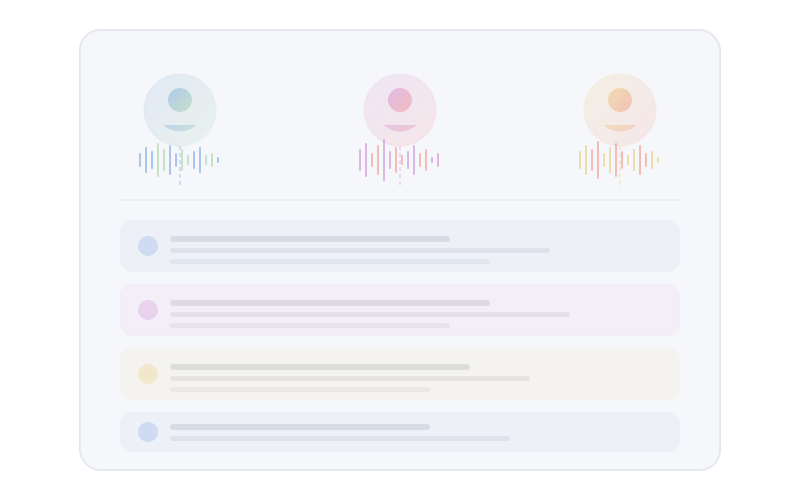
Automatic speaker separation creates speaker labels, supports profile linking and review, and powers search filters across meetings and recordings.
Last updated: 23 September 2026
Availability
Meeting recording and speaker processing require an experimental Mac build with meeting support. The default build omits them. Existing transcript text remains available through general Search, Ask and Sources under the usual access and retention settings.
Purpose and scope
Speaker identification turns who spoke when in your audio into structured speaker labels that resolve into people profiles and power search filters. Overshow uses on-device speaker diarisation so each recording can be split into speaker-attributed segments without sending audio away.
On macOS, hardware acceleration supports parts of the pipeline including voice activity detection and speaker identification workloads, keeping processing responsive.
The outcome is not merely a transcript: you get searchable, filterable speaker labels that improve recall after calls, interviews, and long working sessions where several people contribute.
Your voice data
Overshow stores no voice embeddings at all, not even yours. A voiceprint is biometric data under UK GDPR (Article 9) and US state biometric laws (such as Illinois BIPA), so Overshow is designed not to create that category of stored data in the first place. While a recording session is active, diarisation works with transient acoustic representations in memory to tell speakers apart. They are discarded when the session ends and are never written to disk, never compared across meetings, and never leave your device. Who-is-who across meetings comes from names, calendar context, and the people you confirm, never from voice matching.
End-to-end pipeline
| Stage | Components | Outcome |
|---|---|---|
| Capture | Microphone input from Overshow audio capture | Audio buffered for processing |
| VAD | Neural and classical voice activity detection | Speech versus non-speech regions estimated |
| Conditioning | Audio normalisation and noise reduction on speech segments (when diarisation enabled) | More stable segments for embedding |
| Diarisation | On-device segmentation and speaker embedding | "Speaker A / B / ..." timelines within each file |
| Identity layer | Speaker labels resolved into people profiles | Labels scoped to the recording. Identity carried by profiles |
| Acceleration (macOS) | Hardware acceleration for applicable workloads | Lower latency and better battery behaviour on Apple silicon |
Hardware acceleration on Apple Silicon
Hardware acceleration is available on Apple Silicon for applicable workloads, which reduces latency and improves battery behaviour during active diarisation.
How voice profiles work
Embeddings and clustering
Speaker labelling separates who spoke when within a single recording. Overshow does not store voice embeddings or build voiceprints of anyone: the acoustic representations diarisation uses exist only in memory during the session and are discarded when it ends. Acoustic separation helps the system propose distinct speakers within a single recording. Overshow does not match voices across meetings: speaker labels are scoped to the recording they come from, and the profile layer carries identity through your own confirmations.
Speaker grouping is probabilistic. Room acoustics, microphone quality, and overlapping speech all influence how cleanly labels form. Overshow resolves labels into people profiles you can review on the People surface, so your catalogue stays trustworthy.
Segmentation pipeline
Voice activity detection feeds diarisation. Overshow combines neural and classical voice activity detection to estimate where speech occurs before speaker models run. Automatic speaker segmentation then splits the timeline into speaker-attributed regions.
When speaker diarisation is enabled, the pipeline also applies audio normalisation and noise reduction on detected speech segments, which tends to stabilise embeddings and improve clustering under less-than-ideal capture conditions.
Why normalisation and noise reduction matter
Raw levels that swing between quiet laptop mics and loud desk setups can exaggerate superficial differences between clips of the same person. Normalisation and targeted noise reduction on speech regions help the embedding model focus on voice characteristics rather than volume quirks or steady background hum.
Speaker identity and profiles
How labels get their names
Each recording starts with automatic placeholder labels in the "Speaker 1 / Speaker 2" style. Identity comes from people profiles: as meetings are processed, Overshow resolves speaker labels, calendar attendees, and transcript mentions into suggested people on the People surface, where you confirm or hide them.
Duplicate labels
The same physical speaker may appear as multiple labels across recordings after different microphones, rooms, or emotional tone. Labels are deliberately scoped to the recording they come from. The profile layer is what carries a person's identity across meetings, without silently merging unrelated people.
Clearer audio input improves clustering quality more than any post-processing tweak. A quiet room, a consistent mic position, and avoiding heavy compression where possible all help the model separate speakers cleanly.
Handling false detections
Background noise, keyboard clatter, and low-bit-rate codecs can produce spurious speaker regions. A spurious label stays a placeholder: it is never matched to other voices and never becomes a suggested person, so it cannot pollute your people catalogue.
Aggressive consolidation can hide real participants. Prefer small, evidence-based confirmations after listening to short samples or checking meeting context.
Recurring voices and housekeeping
Recurring voices become far more useful once they resolve to confirmed people. Confirming even a handful of frequent collaborators on the People page dramatically improves scanability of long transcripts and post-meeting review.
Linking speakers to meetings
When recordings align with meeting metadata elsewhere in Overshow, speaker labels compound the value: you can move from calendar context to transcript to who said what without re-listening to entire calls.
Search and filters
Speaker filtering
The desktop search UI exposes speaker filters. Restrict results to one or more speakers to review a single person's contributions across days or projects.
How labels improve retrieval
Named speakers turn vague queries ("what did Alex say about the rollout") into filter-backed queries: text match plus speaker scope. Even partial naming, such as a first name or role-based tag, beats scrolling unlabelled timelines.
| Scenario | Benefit |
|---|---|
| Post-mortems | Isolate one owner's statements quickly |
| Interviews | Separate interviewer and guest without manual timestamps |
| Stand-ups | Trace recurring updates from the same voice |
| Compliance review | Narrow to a single voice before exporting or citing |
| Onboarding listening | Find every utterance attributed to a new hire's cluster |
Combining speaker filters with text
| Workflow | Suggestion |
|---|---|
| Exact quote hunt | Keyword mode plus speaker filter |
| Topic or decision | Distinctive terms plus a speaker or meeting filter |
| Unknown wording | Try likely transcript terms, then filter by speaker |
Configuration and pipeline interactions
Speaker identification sits downstream of capture and transcription but upstream of how you filter and search audio-derived content. Enabling diarisation engages the normalisation and noise reduction path on speech segments. Disabling it skips that cost when you only need plain transcripts.
Voice activity detection is part of the product's default segmentation stack. You typically interact with outcomes through settings that enable or emphasise speaker features rather than low-level model toggles. Refer to your app version for exact controls.
If speaker counts look inflated in noisy environments, try improving capture quality before toggling advanced options. Fewer false speech segments mean fewer phantom speakers to review.
Best practices for voice quality
| Practice | Effect on identification |
|---|---|
| Use a consistent primary microphone | Reduces embedding drift for the same person |
| Minimise overlapping speech | Overlap confuses segmentation boundaries |
| Reduce fan and keyboard noise at the source | Fewer false VAD triggers and hallucinated speakers |
| Avoid extreme dynamic range compression | Preserves natural spectral detail embeddings use |
| Position the mic close enough for clean speech | Weak signals blur speaker boundaries |
| Prefer wired or high-quality wireless with stable codec | Dropouts create fragmentary segments |
| Normalise meeting etiquette | One person speaking at a time helps diarisation |
| Close unused conferencing streams | Phantom channels inject low-level noise into VAD |
| Test levels before long recordings | Clipping and near-silence both harm embeddings |
| Prefer native app capture over brittle virtual cables | Stable routing reduces sudden timbre shifts |
When quality is limited
Noisy cafes, open offices, and travel
Diarisation still runs, but expect more speaker splits and more placeholder labels. Confirm people only after listening, and accept that some sessions will remain "good enough for text search" rather than perfect speaker attribution. Pausing non-essential capture during the noisiest moments often saves more curation time than aggressive consolidation afterwards.
Room and hardware checklist
Expand for a practical setup review
- Acoustics: soft furnishings reduce harsh reflections that colour embeddings differently across rooms.
- Gain: set input levels so normal speech peaks comfortably without clipping.
- Bluetooth: some headsets switch profiles for calls versus music. Stick to one mode per session where possible.
- Laptop mics: workable for identification, but desk distance and fan noise are common reasons for extra speaker splits. An external mic is often the single biggest upgrade.
Maintaining clean speaker profiles over time
- Weekly or monthly: review suggested people on the People page and confirm recurring voices.
- After major hardware changes: expect new clusters. Plan review time rather than fighting duplicate labels.
- After noisy recordings: listen before confirming, so you do not consolidate real speakers with junk segments.
- Before handing off a project: make sure recurring collaborators are confirmed people so shared search stays intuitive.
Speaker identification runs on device alongside transcription. It is designed for organisations that want voice-derived structure without shipping raw audio to third-party diarisation APIs for routine work. Always align use with your local policy and consent practices.