
Where your meeting audio actually goes
A plain walk through the on-device audio path: captured on your Mac, transcribed locally, raw audio removed after terminal processing, transcript encrypted at rest.
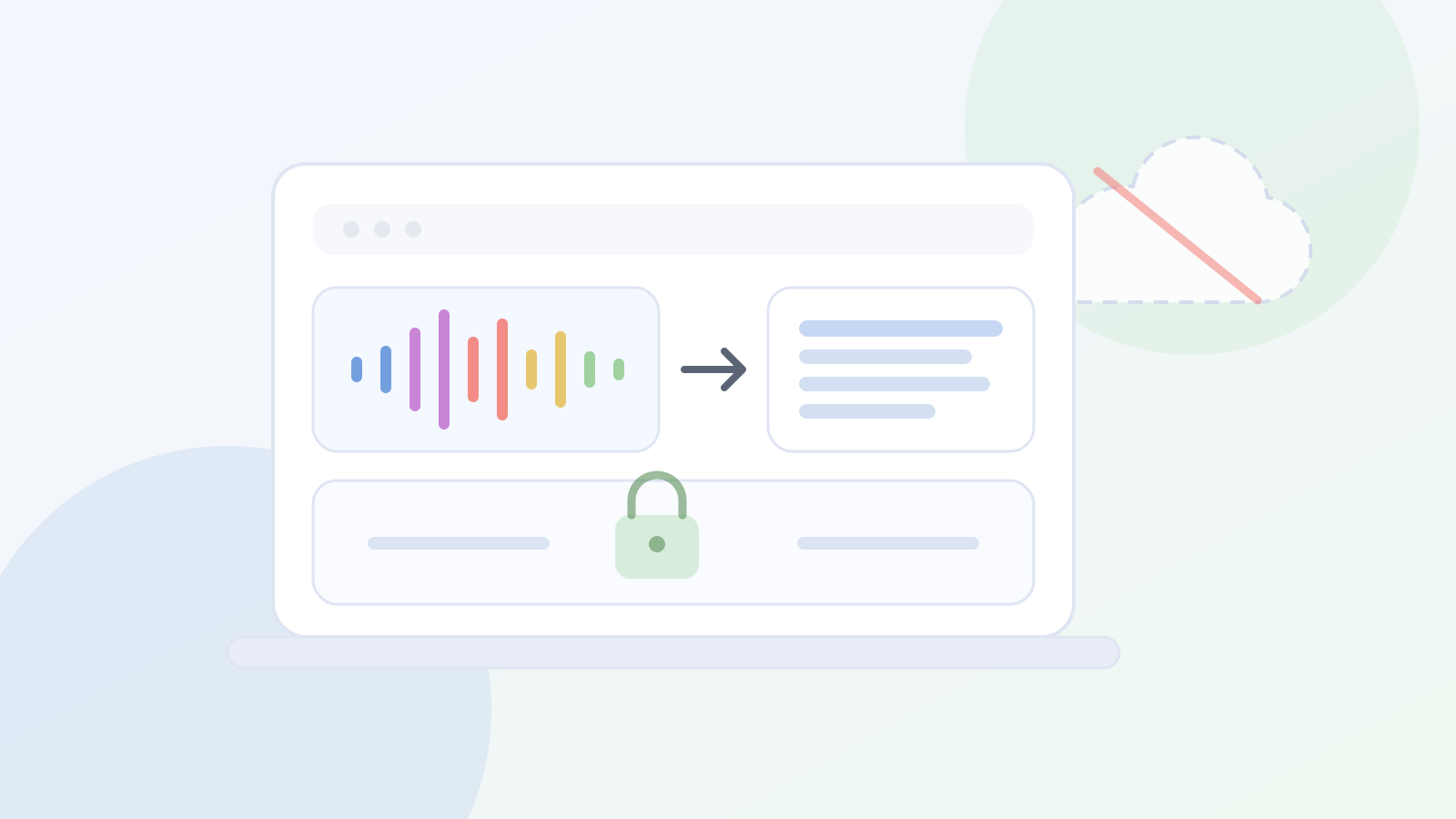
Every tool that turns meetings into transcripts has to answer one question: where does the audio go between someone speaking and the text appearing? For most tools, the honest answer is a diagram of someone else's infrastructure. With Overshow, meeting audio never leaves your Mac for transcription. Here is the path in both cases, step by step.
The typical cloud pipeline
A cloud meeting assistant usually works like this:
- Audio is captured from the call and uploaded to the vendor's servers, often live as the meeting runs.
- It is processed on the vendor's infrastructure, and frequently not only the vendor's: transcription, storage, and analysis are commonly handled by subprocessors listed in a policy document most users never read.
- The recording and transcript are retained under the vendor's retention policy, which can change, and which you cannot audit from the outside.
- Deleting your data means submitting a request. Whether and when deletion actually completes across copies and backups is something you take on trust.
None of this is nefarious. It is simply how cloud software works. But a meeting record is candid by nature, and "trust the policy document" is a lot to ask of the most sensitive text a workplace produces.
The on-device path
Overshow's path is shorter:
- Captured on your Mac. Meeting audio is recorded by the app on your own device, only while a meeting is active or you start a recording manually. Outside meetings, audio capture stays idle.
- Transcribed on your Mac. A local speech model turns the audio into text on the device. Nothing is sent anywhere to be transcribed, and transcription works with the network unplugged. Speaker labelling happens on the device too, and no voiceprints are stored.
- Raw audio removed after terminal processing. Once a window has a terminal transcript or trusted-silence result, its raw audio is deleted. Interrupted or unresolved windows remain as encrypted recovery data on the Mac. In the rare case where speech is detected but the model produces no usable transcript, that encrypted carrier is quarantined across restarts until a model or result-filter revision makes one new attempt possible, you delete it, or oldest-first eviction removes it under the shared ten-hour durable-audio cap. The quarantine is bounded by that cap, but not by a wall-clock expiry, and is never uploaded for transcription.
- Transcript encrypted at rest. The transcript lives in an encrypted database on your Mac, searchable locally through search and Ask.
What you can verify versus what you must trust
The useful difference between the two pipelines is not intent, it is where verification happens. Claims about the local path can be checked on your own machine: watch the network activity while a meeting is being transcribed, or look at what actually sits on disk. Claims about a cloud pipeline can only be checked by reading policies and trusting the vendor's assurances. Both can be true, but only one is inspectable by you.
The honest edges
Four captured-content paths move data only when you choose the relevant action or opt-in. If you connect an approved AI client through Overshow's read-only memory connection (MCP), a cloud client receives the transcript snippets it retrieves, while an approved local client keeps everything on your Mac. A transcript or markdown mirror you export becomes an ordinary file outside the encrypted store, placed wherever you put it; a cloud-synced destination then moves that copy under the provider's control. A feedback diagnostic can include transcript or screen text only when you review, attach, and submit it. Optional URL enrichment sends a captured URL back to its originating site to fetch link metadata.
Separately, recording on your own device does not remove your obligation to tell people you are recording where the law requires it; our recording consent guide covers that. For the meeting-audio processing path itself, the default remains: meeting audio in, local text out, and no captured content uploaded for processing.